Free Printable Word Sudoku Puzzle Maker
Create a custom word sudoku and download it as PDF in seconds — free, no account needed.
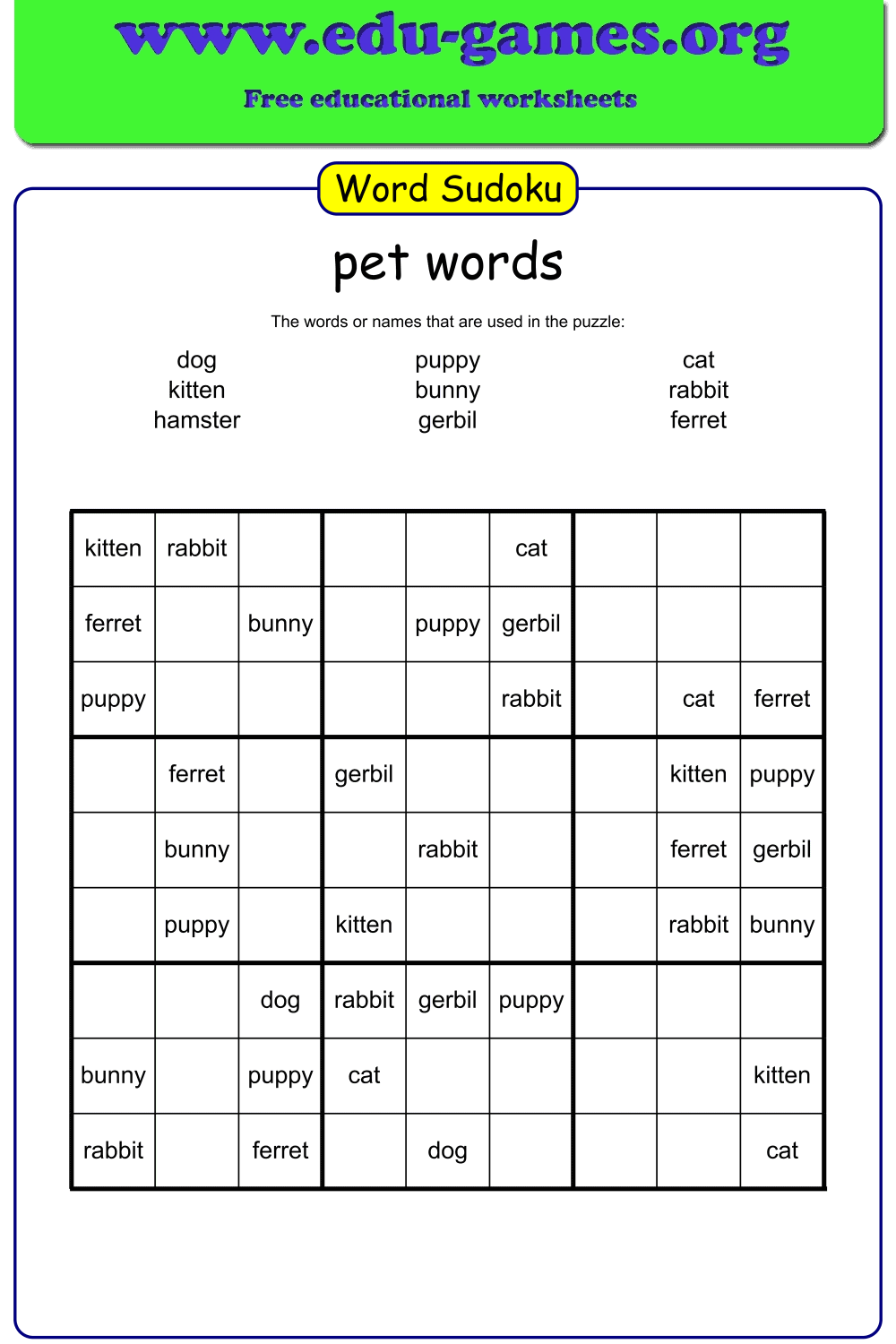
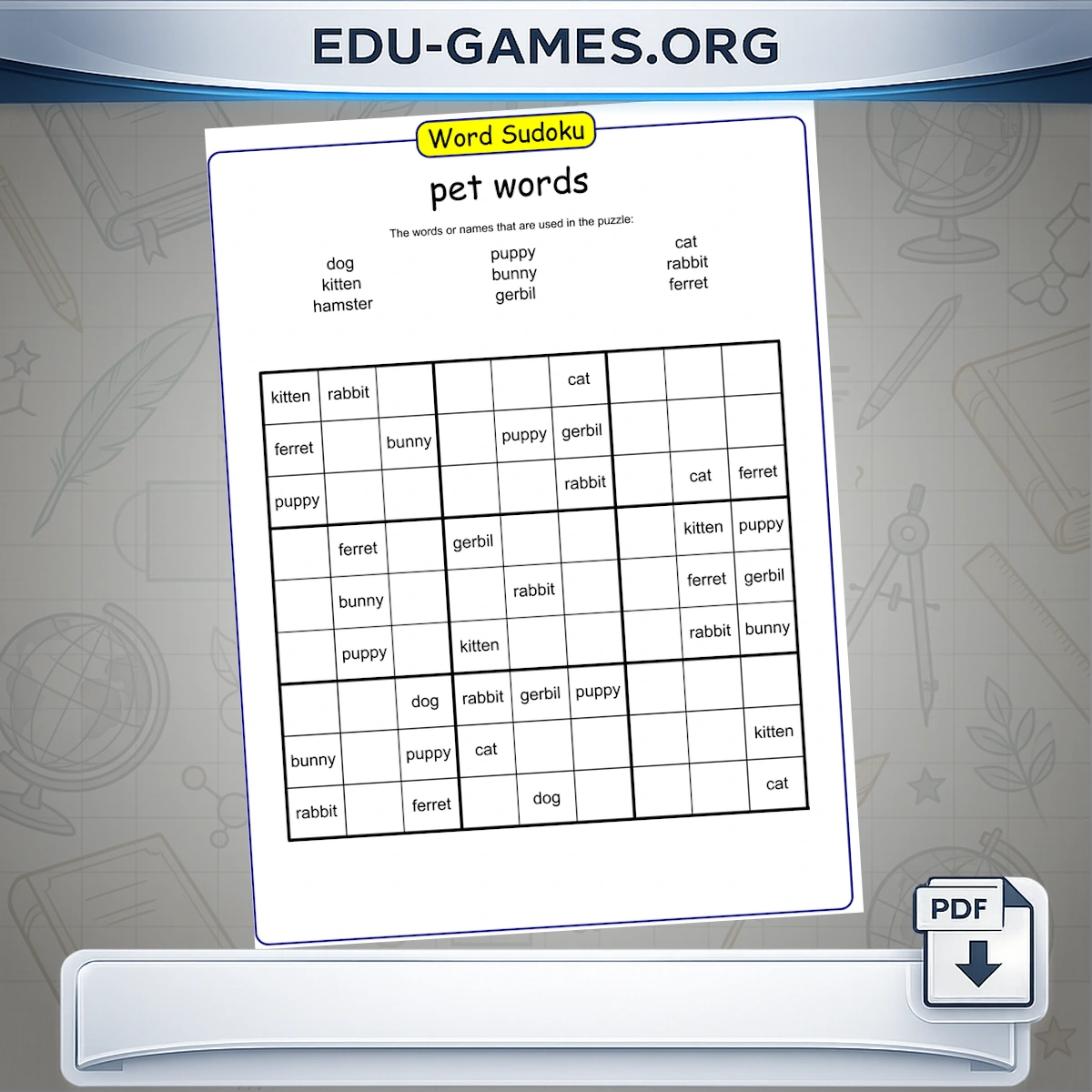
Instead of numbers, your chosen words fill the sudoku grid. Every word must appear exactly once in each row, column, and box — just like classic sudoku, but with vocabulary. Choose your words, set the difficulty, and download a print-ready PDF.
Used by teachers worldwide · Instant PDF download · No account required
Create your Word Sudoku puzzle
Membership is free.
How to Use the Word Sudoku Maker
- Enter a title. Give your puzzle a name — for example "Animals" or "Week 5 Vocabulary" — so students know what word set the puzzle covers.
- Type in your words. Enter exactly as many words as your chosen grid size: 4 words for a 4×4 grid, 6 for a 6×6 grid, or 9 for a 9×9 grid. Each word goes on its own row in the word list. Words highlighted in red exceed the grid size and will not be used.
- Choose the grid size. Select 4×4, 6×6, or 9×9 from the Puzzle size drop-down. Changing the size immediately regenerates the puzzle with the current word list.
- Set the difficulty. Pick a level from Very Easy to Very Hard. This controls how many cells are pre-filled and how many are left blank for students to complete. Moderate is a good starting point for most classes.
- Generate the puzzle. Click "Generate a Word Sudoku Puzzle". A preview appears on the right. Click "Show Solution" to verify the complete grid — solution cells are highlighted in blue, pre-filled starting cells in black.
- Download as PDF. Click Download to save a print-ready PDF of your puzzle.
Classroom tips
- Match words to your lesson. Use this week's spelling list, topic vocabulary (planets, months, animals), or any subject-specific set — the tool works with any words.
- Use 4×4 for younger students. A 4×4 grid at Very Easy difficulty reveals most cells and is accessible for students in Grade 1–2 who are just learning sudoku logic.
- Use 9×9 for an extended activity. A 9×9 grid at Hard or Very Hard difficulty takes most students 15–20 minutes — ideal as an independent work station or early-finisher task.
- Community puzzles. When you create a new puzzle, it may be added to the shared library below the generator so other teachers can use it too.
What Is Word Sudoku?
Word sudoku replaces the digits 1–9 with a set of words. The rules stay exactly the same: each word must appear exactly once in every row, every column, and every bold-bordered box. Because words are harder to track at a glance than single digits, word sudoku is noticeably more demanding than its number counterpart — even at the same difficulty level.
Why use words instead of numbers?
Replacing numbers with vocabulary words turns a logic puzzle into a dual-purpose activity. Students reinforce spelling and word recognition while exercising exactly the same systematic elimination thinking that standard sudoku develops. The format is particularly effective for vocabulary revision because students must read and compare each word dozens of times while working through the grid.
Grid sizes
- 4×4 — uses 4 words, 16 cells. Quick to complete; suitable for Grade 1–3 or as a warm-up activity.
- 6×6 — uses 6 words, 36 cells. A medium-length activity; suitable for Grade 3–5.
- 9×9 — uses 9 words, 81 cells. Full-size sudoku; suitable for Grade 5 and up.
Related vocabulary activities
If your students enjoy word sudoku, try the Word Scramble Maker for a quicker warm-up using the same word list, or the Crossword Puzzle Maker for a clue-based grid activity that pairs well with any vocabulary set.
Frequently Asked Questions — Word Sudoku Maker
How many words do I need to enter?
Exactly as many as the grid size you have chosen: 4 words for a 4×4 puzzle, 6 words for a 6×6 puzzle, and 9 words for a 9×9 puzzle. If you enter fewer words than the grid size requires, the generator will show an error message instead of creating the puzzle.What does the difficulty level control?
It controls how many word cells are pre-filled in the printed puzzle. Very Easy reveals around 63–65% of all cells; Easy reveals 46–62%; Moderate (the default) 40–44%; Hard 33–40%; and Very Hard 25–32%. The harder the level, the fewer starting cells the student has to work from.Does changing the grid size or difficulty level immediately regenerate the puzzle?
Yes — both the Puzzle size drop-down and the Level drop-down trigger an automatic regeneration the moment you change them. If you want to review the current puzzle before switching, click Show Solution first to see the complete grid in the preview.What does the "Show Solution" button do?
It reveals all blank cells in the canvas preview, highlighting the solution cells in blue so you can distinguish them from the pre-filled starting cells. Click the button again to hide the solution. The solution is never visible on the printed student sheet — it is only shown on screen so you can verify the puzzle before downloading.Can I download the puzzle as an Excel file?
Yes. The Excel download button exports the sudoku grid as a spreadsheet, which is useful if you want to edit the layout, embed the grid in another document, or share it digitally without a PDF viewer.Share the Word Sudoku Puzzle Maker with your friends